RBAC
How role-based access control works in Sleuth Skills. Covers global admins, team admins, and the change-request flow that reviews edits and installation requests from regular members.
Sleuth Skills ships with a small, pragmatic role model designed around a simple question: who can change what, and when does a change need a second pair of eyes?
There are two places a role is assigned — at the organization level and at the team level — and both feed the same change-request approval flow.
The roles
Global admin
A global admin is assigned at the organization level and has full permissions across every team, repository, bot, and asset in the vault.
A global admin can:
Create, edit, and publish any asset in any team without going through a Change Request.
Approve any open Change Request or installation request.
Create, rename, and delete teams.
Create, configure, and delete bots. Rotate bot API keys.
Connect and disconnect repositories.
Change any member's organization role.
Install any asset to any target (org, team, repo, bot, personal).
Org settings you see in the left nav (inviting members, managing repositories, etc.) are gated on this role.
Team admin
A team admin is a member of a specific team whose membership has the admin flag set. Team admins have authority within that team's scope — members, repositories, and any asset installed to the team — but not across the organization.
A team admin can:
Approve Change Requests raised against assets their team owns or has installed.
Approve installation requests that target their team.
Add, remove, and rename team members.
Add and remove team repositories.
Install team-owned assets to the team or to the team's repositories.
Promote other team members to team admin, or demote them back.
A team admin cannot change other teams, the organization's global settings, or anyone's organization-level role.
Team admins are the most common "reviewer" role in practice — they're the people approving day-to-day edits from their own teammates without needing a global admin in the loop.

Member
A member is the default role for everyone in the organization. Members can:
Create new assets (as drafts).
Edit drafts they own without approval.
Request edits to published assets — this opens a Change Request that a team admin or global admin must approve.
Request an installation of any asset to a target — this opens an installation request that an admin must approve before it applies.
View the audit log and usage metrics (read-only).
Members cannot install assets directly, delete teams, or approve anyone else's changes.
The Change Request flow
When a member edits a published asset, the system does not merge the change immediately. Instead it creates a Change Request — a structured PR-style object with the new files, a diff, an optional comment thread, and a requires_approval flag.
A Change Request moves through these states:
Open — created by the member; visible to the team's admins and global admins.
Approved — a team admin (or global admin) reviews and approves. The change is eligible to merge.
Merged — the new version becomes the published version of the asset. The audit log records the transition.
Rejected — the reviewer declines. The member can update and re-submit.
If no team admin exists for the asset's owning team, the Change Request waits for a global admin. This is the one case where the flow can stall — set at least one team admin per active team so day-to-day review doesn't escalate to the org level.
The same flow applies to installation requests. A member who wants to install an asset to a team or a repository raises a request; a team admin (for team-targeted installs) or global admin approves it; sx install then picks it up on the next run.
When is approval required?
Create a new draft asset
✅ Direct
✅ Direct
✅ Direct
Edit a draft you own
✅ Direct
✅ Direct
✅ Direct
Edit a published asset
Requires approval
✅ Direct
✅ Direct
Install to a team
Requires approval
✅ Direct (own team)
✅ Direct
Install to a repository
Requires approval
✅ Direct (team's repos)
✅ Direct
Install org-wide
Requires approval
Requires approval
✅ Direct
Install to a bot
Requires approval
✅ Direct (team's bots)
✅ Direct
Install personal (self only)
✅ Direct
✅ Direct
✅ Direct
Create / rename / delete a team
❌
❌
✅
Add / remove team members
❌
✅ (own team)
✅
Promote a team admin
❌
✅ (own team)
✅
Approve a Change Request
❌
✅ (own team)
✅
Create / delete a bot, rotate API keys
❌
❌
✅
Personal installs are always self-serve — any member can install an asset for themselves. The system enforces that the user scope matches the caller's identity, so a member cannot use this route to install assets for teammates.
How roles are assigned
Global admin is granted from Organization settings by an existing global admin.
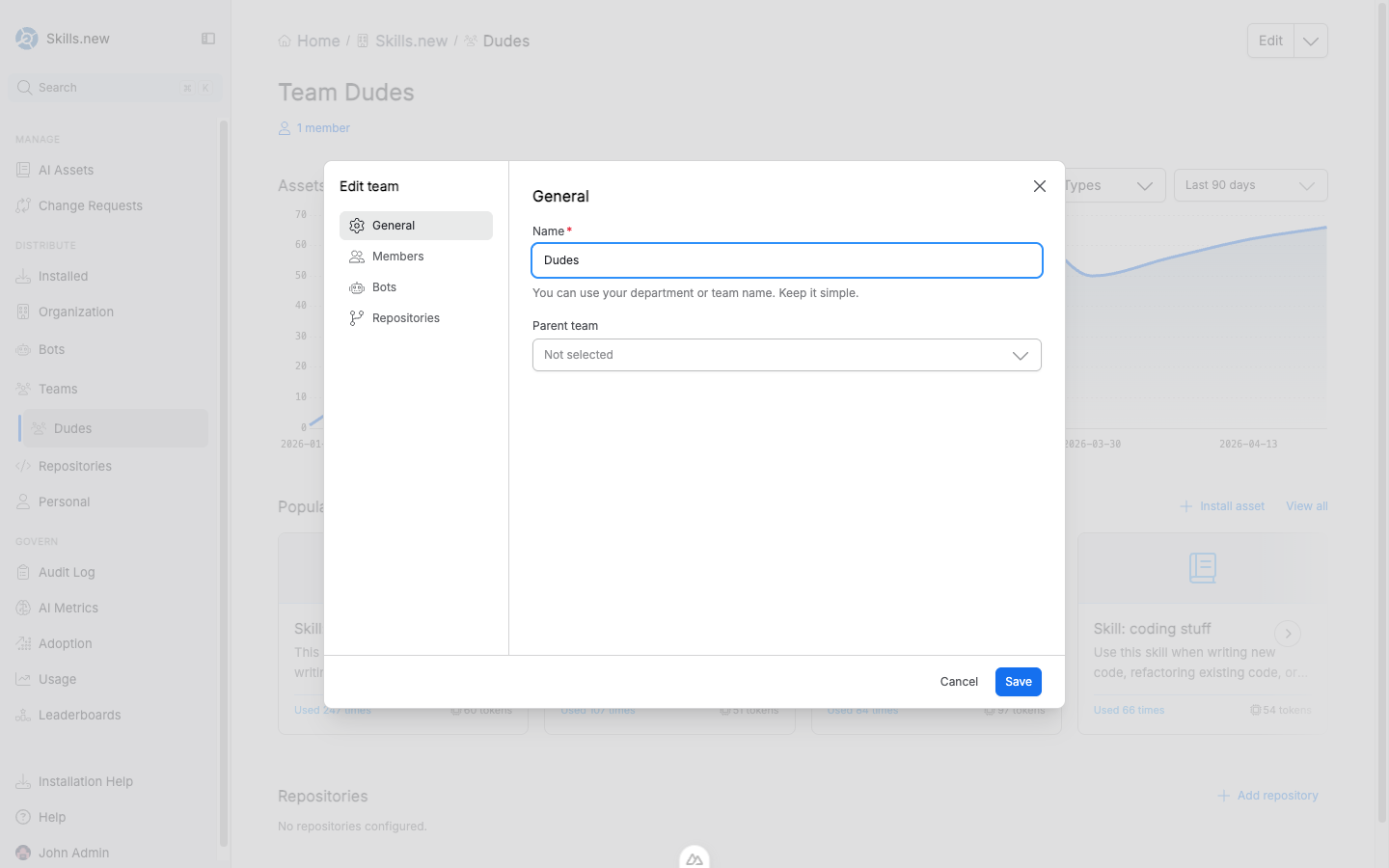
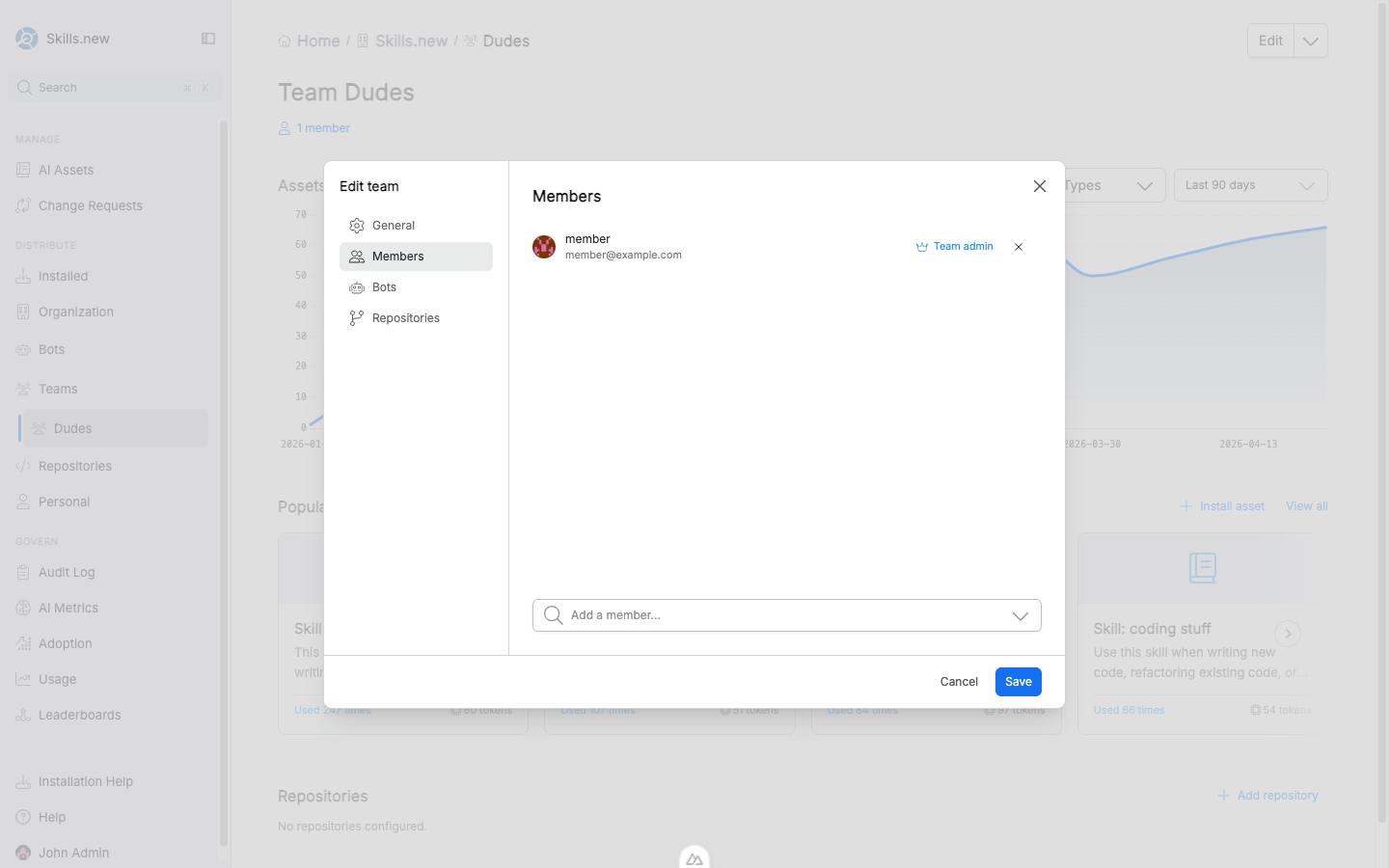
Team admin is granted from a team's page: open the team, click Edit in the top-right, switch to the Members tab, and toggle the Team admin badge next to the relevant member. Bot members of a team cannot be admins.

Every role change — promotion, demotion, removal — is recorded in the Audit Log.
Keeping the flow healthy
Three small habits keep the approval flow from becoming friction:
Every active team has at least one team admin. Otherwise Change Requests pile up waiting for a global admin.
Prefer team-scoped installs over org-wide. Org-wide installs require global-admin approval; team installs stay inside the team.
Review Change Requests within a day. The longer a CR sits open, the more likely the member has moved on and the edit goes stale.
Last updated
Was this helpful?