# Manage

**Manage** is where assets are created, edited, versioned, and reviewed. It covers both the *artifacts* your engineers publish (skills, rules, agents, commands, hooks, MCP servers, Claude Code plugins) and the *RBAC model* that decides who can do what to them.

Start with [RBAC](/sleuth-skills/manage/rbac.md) if you're setting up a team for the first time — it explains the roles and the change-request flow that gates member edits. Then see the individual asset-type pages for the structure and metadata each one expects.

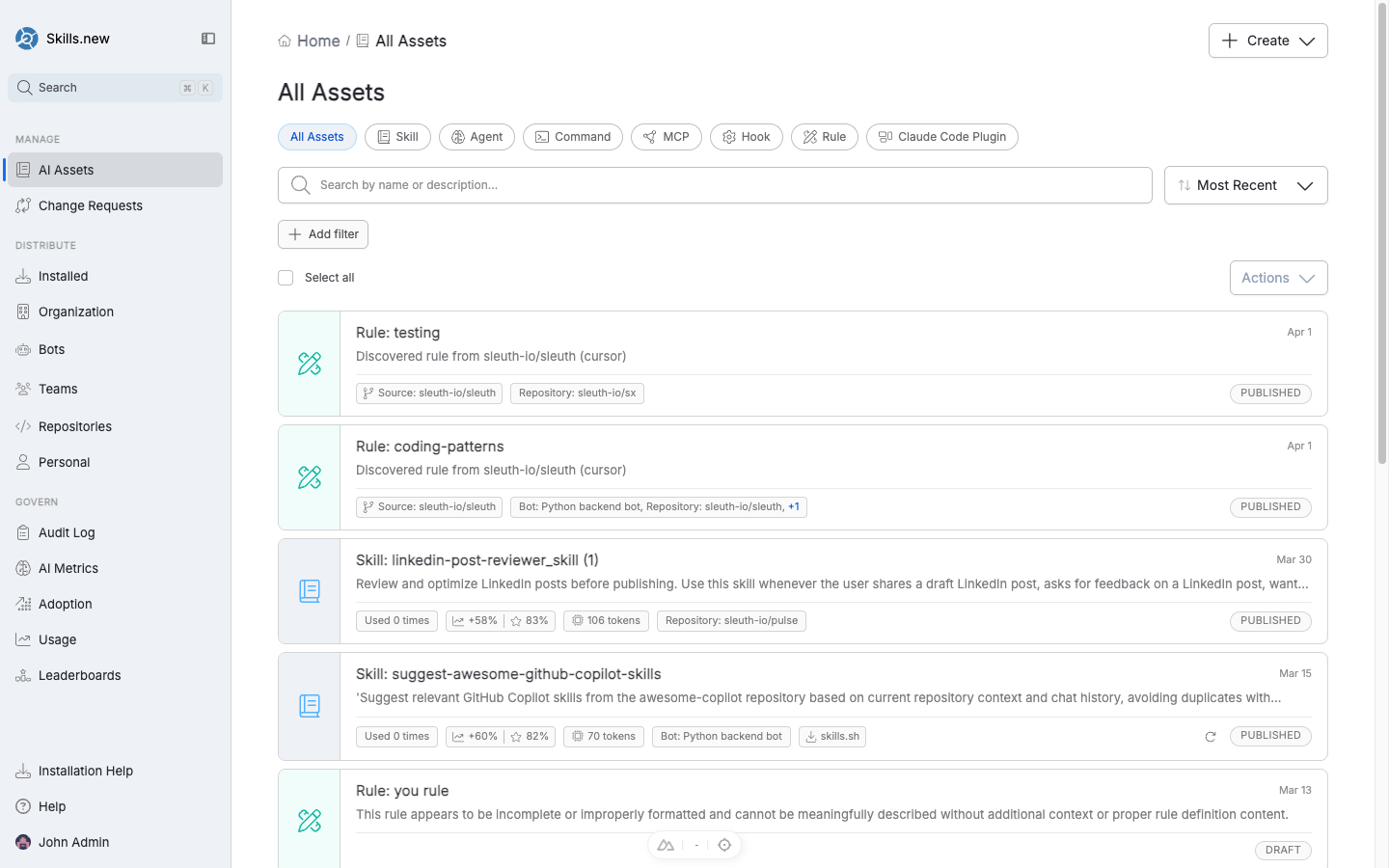
<figure><img src="/files/0ykRWddSxu1H9HbjIDIC" alt=""><figcaption><p>The AI Assets list — filter by type, search by name, and sort by recency or popularity.</p></figcaption></figure>

## Asset types

Sleuth Skills currently supports seven asset types. Each has its own page below.

| Type               | Purpose                                             | Page                                                                |
| ------------------ | --------------------------------------------------- | ------------------------------------------------------------------- |
| Skill              | Named capability with a prompt and metadata.        | [Skills](/sleuth-skills/manage/skills.md)                           |
| Rule               | Coding standards that auto-apply based on context.  | [Rules](/sleuth-skills/manage/rules.md)                             |
| Agent              | An autonomous worker with a goal.                   | [Agents](/sleuth-skills/manage/agents.md)                           |
| Command            | Slash commands the user invokes explicitly.         | [Commands](/sleuth-skills/manage/commands.md)                       |
| Hook               | Automation triggered by client lifecycle events.    | [Hooks](/sleuth-skills/manage/hooks.md)                             |
| MCP server         | Model Context Protocol server definitions.          | [MCP servers](/sleuth-skills/manage/mcp-servers.md)                 |
| Claude Code plugin | Bundle of skills, commands, hooks, and MCP configs. | [Claude Code plugins](/sleuth-skills/manage/claude-code-plugins.md) |

## Anatomy of an asset

Every asset, regardless of type, has:

* A **name** — unique within the organization, used in `sx install` commands and URLs.
* A **description** — short sentence that explains what it does. For skills and agents, the description is what the model sees when deciding whether to load the asset; **write it carefully** — a vague description means the model will skip the asset even when it would have helped.
* A **type** — one of the seven above. Determines the validator and where the asset lands on disk.
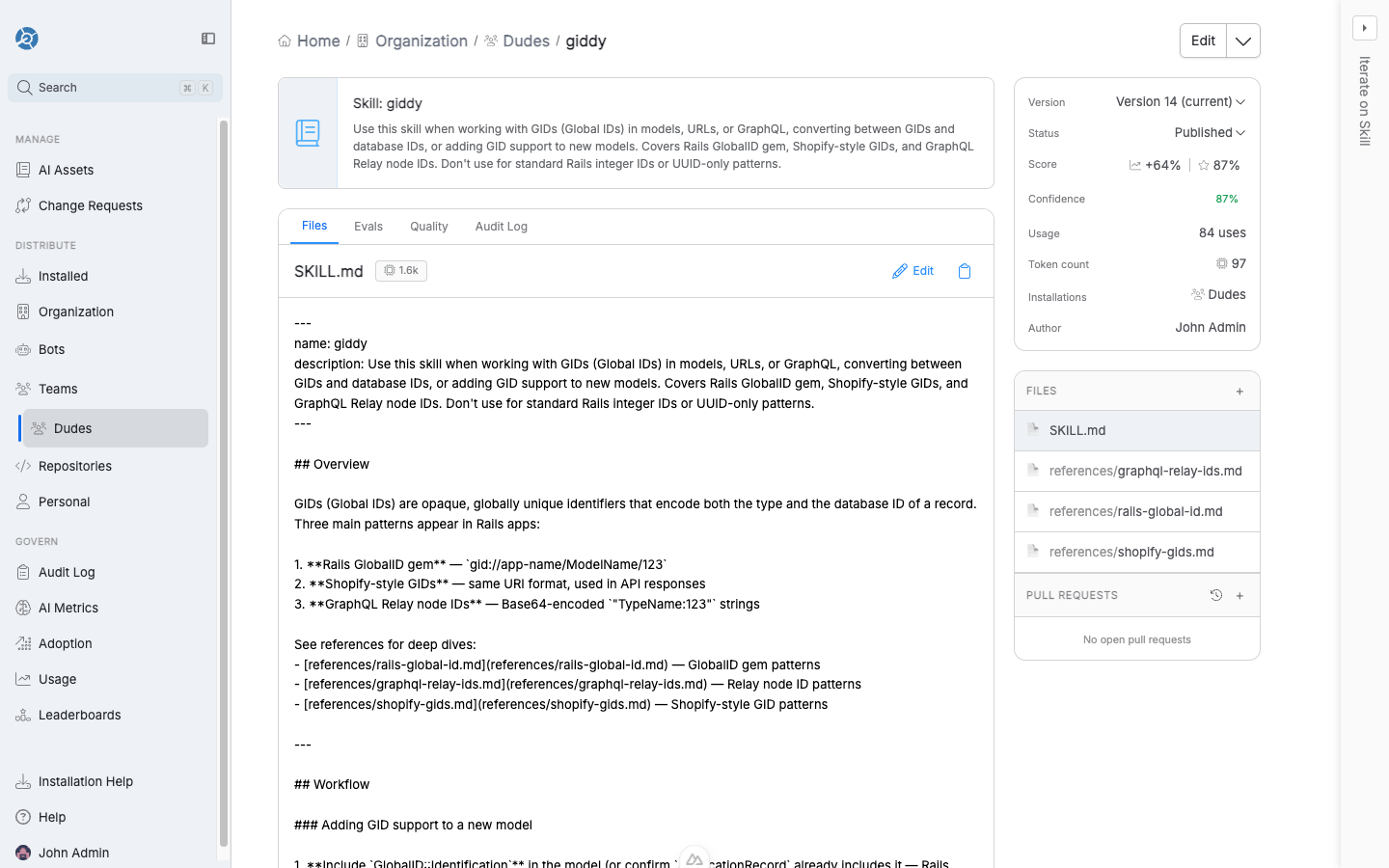
* A **version** — assets are versioned; uploading the same asset with a new payload creates a new version, and the audit log records the transition.
* A **status** — `Draft` or `Published`. Draft assets are visible to admins but do not install for anyone; published assets are installable.
* A **payload** — the actual content, uploaded as a `.zip` file containing the asset's files.

<figure><img src="/files/auy28gUkzYKen0f4mqlo" alt=""><figcaption><p>An asset's detail view — source files, evals, quality score, audit log, and version history on the right.</p></figcaption></figure>

## How assets get into the vault

There are three entry points:

1. **Home-page assistant.** Describe what you want ("create a skill that reviews LinkedIn posts") and the assistant drafts the asset and saves it to the vault.
2. **Create button.** Use the `+ Create` button in the top-right of any page for a guided form.
3. **CLI.** Run `sx add /path/to/asset-dir` to upload from a local directory. `sx` auto-detects the asset type from the file layout and metadata.

Who is allowed to do each of those depends on your [RBAC](/sleuth-skills/manage/rbac.md) role.

## Asset discovery

Once an asset is in the vault, teammates can find it by:

* **Browsing AI Assets** — the full list, with type filters and search.
* **Asking the assistant** — "top skills in the last 30 days" or "what MCP servers do we have?"
* **skills.sh integration** — `sx add --browse` searches [skills.sh](https://skills.sh), a community directory of 85k+ agent skills, and pulls a chosen asset into your vault with metadata intact.

### Automatic GitHub scan

Connecting a GitHub repository to Sleuth Skills also triggers a discovery scan. The app walks the repo for anything that looks like an asset — `.claude/skills/`, `.cursor/rules/`, `.github/copilot-instructions.md`, MCP configs, hooks, Claude Code plugin bundles — and surfaces each hit in **AI Assets** tagged with its source repository. From there your team can promote a discovered asset to an org-wide install, edit it through a Change Request, or retire it, without ever needing to re-author the content that already lives in the repo. Re-running the scan picks up new assets committed since the last scan.

## Versioning

Uploading a new payload creates a new **version** of the asset. Each version has its own files, quality score, and audit trail. Installations pin to a specific version; upgrading to a new version means updating the install (or letting `sx install` pick up the latest when run).

The asset detail page's right-hand rail shows the active version, published status, usage count, and token cost — the size the asset contributes to a client's context window.

## Change Requests

When a non-admin member edits a published asset, the edit flows through a **Change Request** — a PR-style review that a team admin (or org admin) must approve before the new version is merged. Installation requests follow the same pattern. See [RBAC](/sleuth-skills/manage/rbac.md) for the full approval flow and who can approve what.

Change Requests are visible under **Change Requests** in the left nav.

## Evals and quality

Each asset has **Evals** and **Quality** tabs. Evals let you define test prompts and grade outputs; Quality aggregates those evals plus description clarity, metadata completeness, and usage signals into an overall score. The Quality score is the fastest proxy for "is this asset pulling its weight" before you dive into adoption metrics.


---

# Agent Instructions: Querying This Documentation

If you need additional information that is not directly available in this page, you can query the documentation dynamically by asking a question.

Perform an HTTP GET request on the current page URL with the `ask` query parameter:

```
GET https://help.sleuth.io/sleuth-skills/manage.md?ask=<question>
```

The question should be specific, self-contained, and written in natural language.
The response will contain a direct answer to the question and relevant excerpts and sources from the documentation.

Use this mechanism when the answer is not explicitly present in the current page, you need clarification or additional context, or you want to retrieve related documentation sections.