> For the complete documentation index, see [llms.txt](https://help.sleuth.io/llms.txt). Markdown versions of documentation pages are available by appending `.md` to page URLs; this page is available as [Markdown](https://help.sleuth.io/sleuth-skills/distribute/personal.md).
# Personal
Personal installs apply only to you. Use them to experiment with an asset before sharing it, or for tools that don't make sense for anyone else.
A **personal** install is scoped to a single user — you. It writes to your global client directory but is invisible to your teammates. Use personal scope for two things: iterating on an asset before you're ready to share it, and keeping tools that only make sense for you (shortcuts, personal preferences) out of everyone else's context.
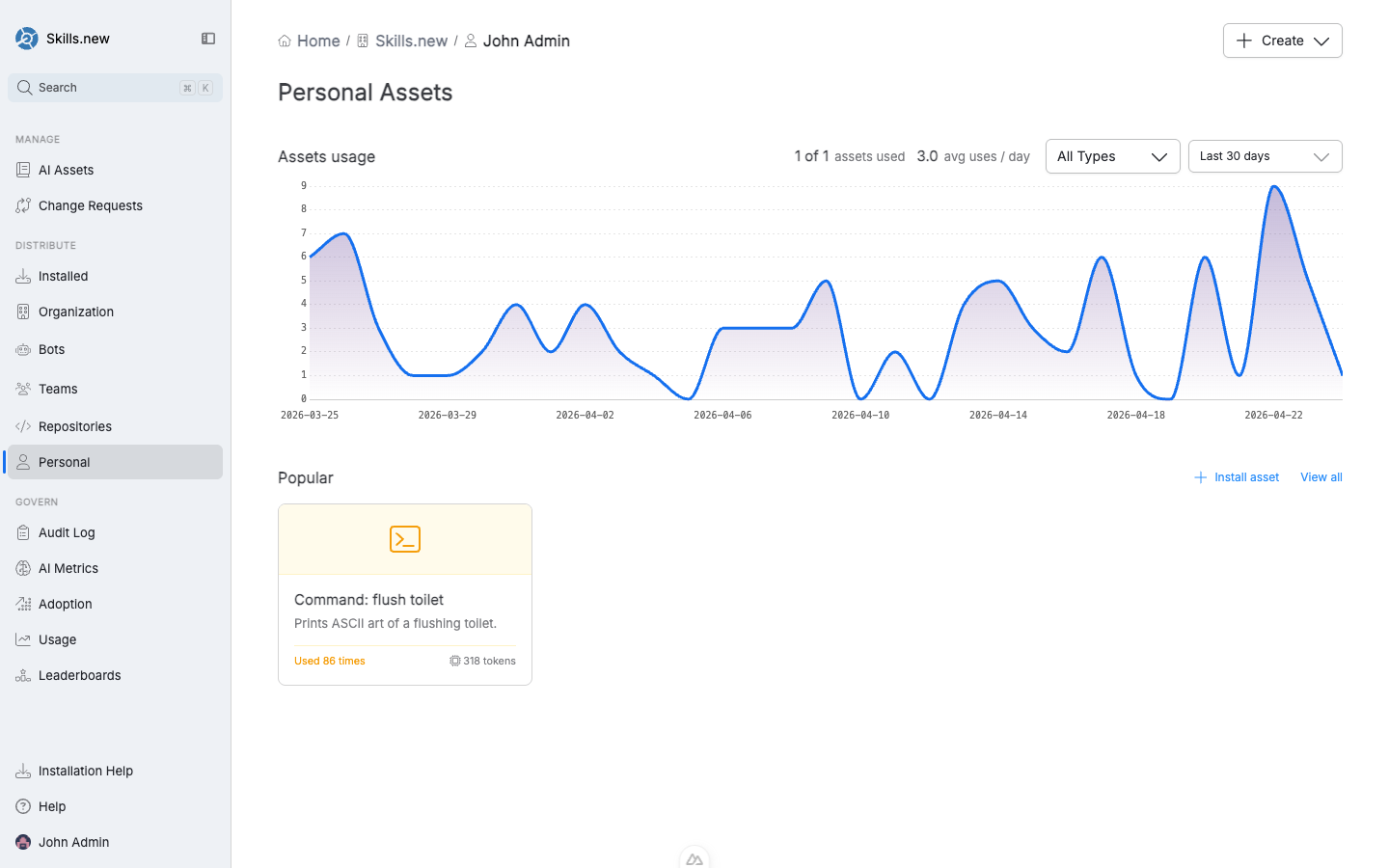
The Personal Assets page shows what's installed just for you.
## What lives here
The **Personal** entry in the left nav shows:
* Assets installed only to you.
* Aggregate usage for those assets (assists you decide whether a personal install is worth promoting to team or org scope).
* A **Popular** section with the assets you use most.
## Installing for yourself
From an asset's detail page, click **Install asset** and pick the personal target. The CLI equivalent:
```bash
sx install my-skill --user you@example.com
```
Two important constraints:
* **Self-only.** You can only target yourself. `sx` rejects a `--user` install that doesn't match the caller's git identity — this prevents someone with write access to the vault from silently flipping an asset to "global" in a teammate's resolved lock file.
* **Resolves to the user's global directory.** A personal install behaves like an org install for *you specifically*: it lands in `~/.claude/` so you see it in every project.
## Promoting a personal asset
Most personal assets don't stay personal forever. The typical lifecycle:
1. **Personal install** while you iterate on the prompt, test the asset, and refine its description.
2. **Team install** once you've shown it works for a role or a specific group.
3. **Org install** when it's clear the whole org benefits.
Promoting means changing the install target, not re-publishing the asset. Open the asset, click **Install asset**, and pick the new target. The old personal install is cleared in the same transaction; the audit log records both events.
## Installed vs Personal
The **Installed** entry in the left nav and the **Personal** entry look similar but answer different questions:
* **Installed** shows everything that applies to *you on this machine* — including your org, team, and repository installs. It's the full picture of your context.
* **Personal** shows only assets installed specifically to your user scope. It's a strict subset of Installed.
Use Installed to audit your effective set; use Personal to manage what only you see.
---
# Agent Instructions
This documentation is published with GitBook. GitBook is the documentation platform designed so that both humans and AI agents can read, navigate, and reason over technical content effectively. Learn more at gitbook.com.
## Querying This Documentation
If you need additional information that is not directly available in this page, you can query the documentation dynamically by asking a question.
Perform an HTTP GET request on the current page URL with the `ask` query parameter, and the optional `goal` query parameter:
```
GET https://help.sleuth.io/sleuth-skills/distribute/personal.md?ask=&goal=
```
`ask` is the immediate question: it should be specific, self-contained, and written in natural language.
`goal` is optional and describes the broader end goal you are ultimately trying to accomplish on behalf of the user. GitBook uses it to tailor the answer towards what is most useful for that goal.
The response will contain a direct answer to the question and relevant excerpts and sources from the documentation.
Use this mechanism when the answer is not explicitly present in the current page, you need clarification or additional context, or you want to retrieve related documentation sections.