> For the complete documentation index, see [llms.txt](https://help.sleuth.io/llms.txt). Markdown versions of documentation pages are available by appending `.md` to page URLs; this page is available as [Markdown](https://help.sleuth.io/sleuth-skills/distribute/bots.md).
# Bots
Bots are service accounts that can join teams and receive asset installs the same way users do. Use them for CI agents, scheduled loops, and review bots.
A **bot** is a non-human principal in Sleuth Skills — a service account that can be a member of teams and have assets installed against it. Bots exist so autonomous agents (CI loops, scheduled cleanup jobs, code-review workers) can pick up the same curated asset set your engineers use, without borrowing a real person's credentials.
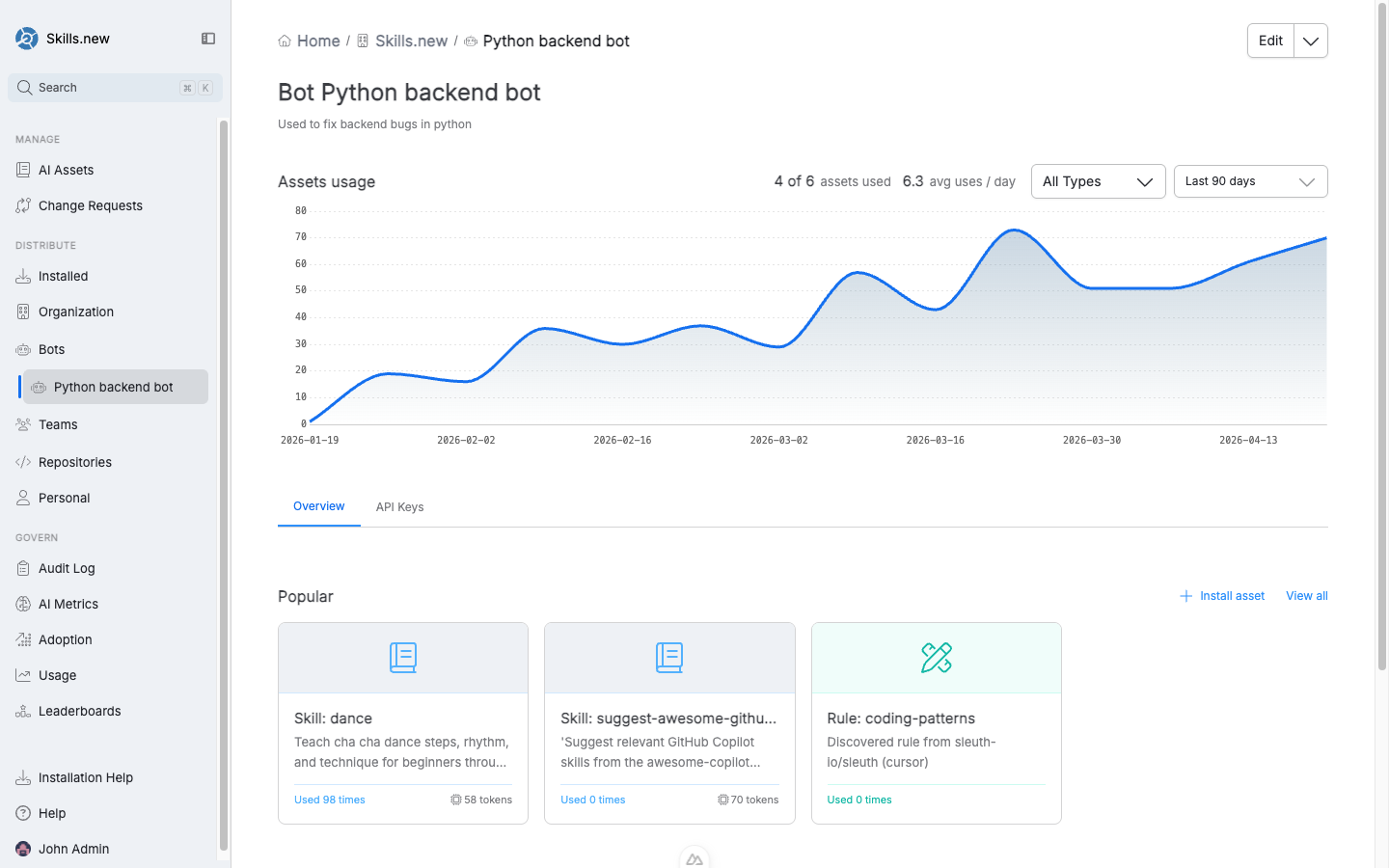
The Bot detail view — usage chart, tabs for Overview and API Keys, and the set of teams the bot belongs to.
## Creating a bot
Click **Bots** in the left nav and choose **Create new bot**, or ask the home-page assistant ("new bot"). You'll provide:
* **Name** — a short identifier. Converted to a slug that must be unique within the organization.
* **Description** — one line on what the bot is for (e.g. "Used to fix backend bugs in python").
Bots start in **Active** status and are ready to use immediately.
## API keys
Bots authenticate via API keys. Each bot can hold multiple keys so you can rotate them without downtime.
Open the bot's **API Keys** tab to manage keys:
* **Create** — issues a new key. The full token is shown **once** at creation time — copy it into your secret manager immediately. Afterward, only a prefix and suffix are stored for identification.
* **Delete** — invalidates a key. In-flight requests using that key will fail on next call.
* **Label** — an optional human-readable label so you can tell `ci-worker-prod` apart from `ci-worker-stage`.
The token is a standard OAuth2 access token with full scope for the bot's organization.
## Adding a bot to a team
Bots join teams the same way users do. On the team page, use **Add member** and select the bot from the dropdown. Once added, every asset installed to that team resolves for the bot, so its CI run or agent loop picks up the same skills and rules the humans on the team use.
This is the recommended pattern: don't install assets directly onto a bot unless the bot has a truly unique need. Put the bot on the teams that describe its role, and let team membership drive the asset set.
## Installing directly to a bot
You *can* install an asset directly to a bot — useful for one-off bot-specific tools. From the bot's page, click **Install asset**. Direct bot installs are separate from team-membership installs and are recorded as their own entries in the audit log.
## Bot vs personal scope
A bot is **not** the same as a personal install. Personal scope is for a human engineer's own machine; bot scope is for a service account that can run unattended anywhere. Bots have API keys; personal scope does not.
## Usage tracking
The bot detail page shows a usage chart (assets invoked per day) and metrics like `1 of 6 assets used` and `0.3 avg uses / day`. This is the fastest way to see whether a bot is actually exercising the skills it has access to — a sign that either the bot is picking the wrong assets, or the assets don't fit the bot's workload.
## Deleting a bot
Deleting a bot invalidates all its API keys and clears any bot-scoped installs. Team memberships are removed automatically.
---
# Agent Instructions
This documentation is published with GitBook. GitBook is the documentation platform designed so that both humans and AI agents can read, navigate, and reason over technical content effectively. Learn more at gitbook.com.
## Querying This Documentation
If you need additional information that is not directly available in this page, you can query the documentation by asking a question.
Perform an HTTP GET request on the following URL with the `ask` and `goal` query parameters:
```
GET https://help.sleuth.io/sleuth-skills/distribute/bots.md?ask=&goal=
```
`ask` is the immediate question: it should be specific, self-contained, and written in natural language.
`goal` is what the user is ultimately trying to achieve, the reason they need the answer. Sharing it helps GitBook give you a better, more relevant answer. A goal is most helpful when it describes the outcome the user wants rather than restating the question. For example, with `ask=how do I create an API token`, a goal like `automate deployments from our CI pipeline` lets GitBook tailor the answer to that use case.
The response will contain a direct answer to the question and relevant excerpts and sources from the documentation.
Use this mechanism when the answer is not explicitly present in the current page, you need clarification or additional context, or you want to retrieve related documentation sections.